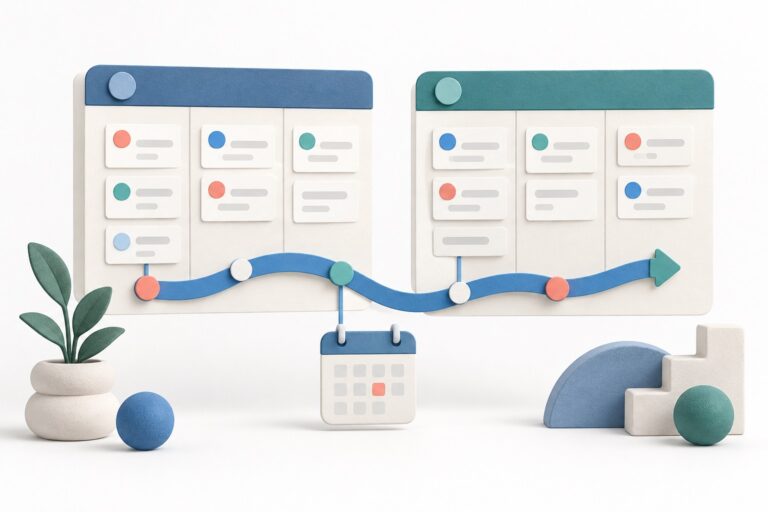
Use Trello advanced checklists when one deliverable contains small steps with different owners or deadlines. Keep the parent card understandable, and promote a step to a separate card when it needs a fuller discussion or its own supporting material.
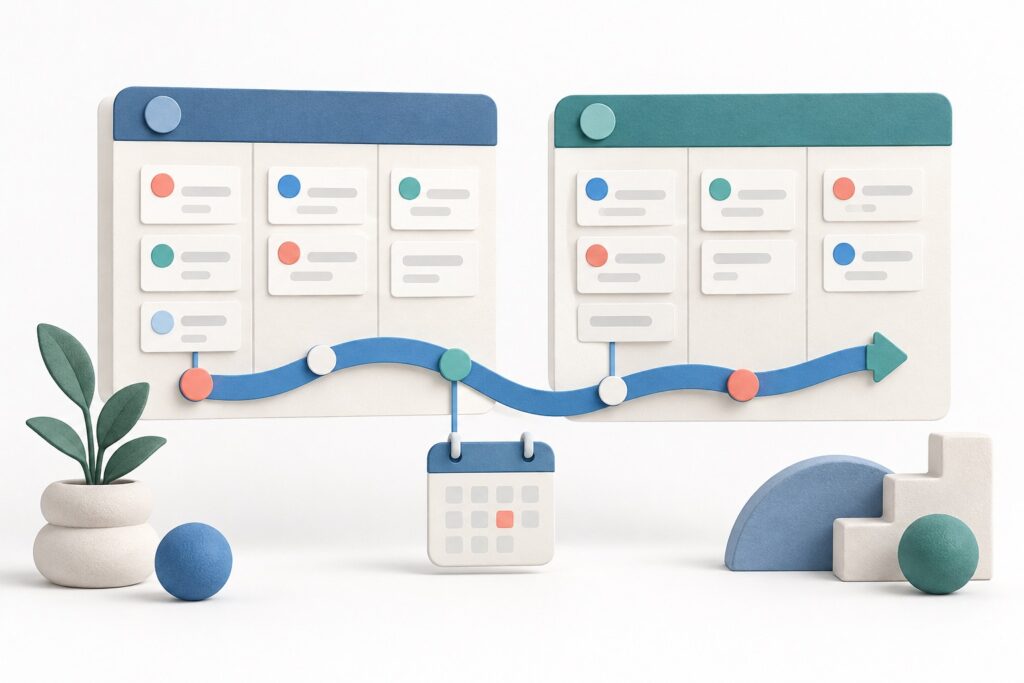
Table of Contents
Build a useful checklist before assigning dates
Open a card, select Checklist, name it and add items. Each line pasted into the item field becomes a separate checklist item. Items can be dragged into a different order or another checklist on that card. Checklist setup and management.
Illustrative example: a studio prepares a client brochure. Its card contains steps for checking the brief, preparing the layout, reviewing the proof and delivering the final file. Write each step as an observable outcome. Review proof is clearer when the team agrees whose approval is required and where that approval should be recorded.
Keep the checklist short enough to read during an ordinary handover. A long list of tiny actions can conceal the important decision. Our Trello card templates guide covers reusable starting structures; this guide focuses on assigning the work inside an actual card.
Check the board’s Workspace before upgrading
Advanced checklists require a board in a Standard, Premium or Enterprise Workspace. The dedicated checklist guide says a Workspace member must set people and dates. Each item has one assignee; guests can be assigned. Advanced checklist access and ownership.
Check the Workspace containing the actual board rather than assuming a subscription elsewhere applies. In the brochure example, give the proof review to the person responsible for returning a clear decision. If two colleagues have different responsibilities, write two separate outcomes rather than making one ambiguous shared task.
Set an owner and inspect the actual deadline
Add the person and due date to the checklist item. Trello documents a default due time of 18:00 in the setter’s local time; the due time can be edited in its iOS and Android apps. Inspect the resulting date and time rather than interpreting a date as an all-day promise. Checklist date behaviour.
For the studio, a final delivery promise and an internal proof deadline are different commitments. Leave realistic time to respond to review comments. If the client moves the delivery date, review the intermediate steps individually instead of assuming that every earlier date has moved appropriately.
Use the right place to review assigned work
Assigned checklist steps appear under Home → Your Items, ordered by due date. Trello sends assignment and due-date notifications through email and its in-app feed; the dedicated guide says mobile push is unavailable for advanced checklists. Assigned items and notifications.
Agree a daily review habit with the people doing the work. A notification is a prompt, not an accepted handover. Ask someone covering an absence to find the card, identify the next action and explain what is still missing. Keep the relevant supporting document easy to locate from the parent card.
Separate checklist access from Calendar access
The board Calendar view shows dated cards and checklist items in Premium and Enterprise Workspaces. Advanced checklists on Standard do not include that paid view. Only a card’s due date can sync to external calendars; do not assume checklist dates become external calendar events. Calendar view and external-calendar limits.
Choose the plan around the view the team will actually use. If Your Items and the board already make deadlines understandable, a broader view may add little. If the studio needs to compare many delivery dates together, rehearse that review with a realistic set of sample cards before making a purchasing decision.
Know when a step needs its own card
Use an item’s actions menu to convert it to a card when it needs a description, attachments or labels. The item’s name becomes the new card title, and its due date and assignee carry over. Deleting a checklist or item is permanent. Conversion and deletion behaviour.
Rehearse with harmless sample work, then check who owns each step and which date is actually recorded. Keep any automated changes separate and documented; our Trello automation guide covers that configuration. Before rollout, ask a colleague to explain when an item is finished and when it should become a separate card. Keep that decision understandable as projects grow.
Sources reviewed 15 October 2026 against official vendor documentation. Examples and suggested rehearsal checks are illustrative, not reported product tests.