The best CRM with invoicing is the one that moves an agreed sale into an accurate bill without making your team maintain two conflicting financial records. Our recommendation is to start with the accounting system you already use, then choose whether invoices should originate there or inside the CRM.
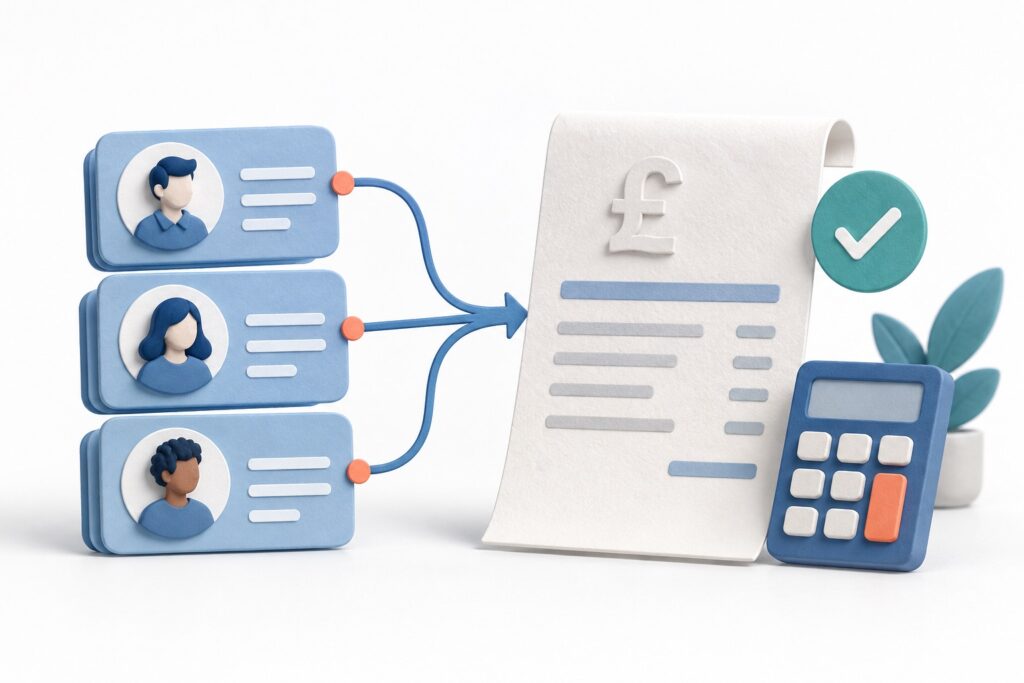
HubSpot offers native invoices. Zoho CRM can work with Zoho Books through its Finance integration. Pipedrive connects deal records to QuickBooks Online invoicing. These are different arrangements, and an integration badge alone does not tell you which one fits your business.
Table of Contents
CRM with invoicing: compare the three approaches
| CRM and setup | Where the invoice lives | Critical constraint |
|---|---|---|
| HubSpot invoices | HubSpot | Online collection needs a supported payment processor; invoice creation and payment processing are separate. |
| Zoho CRM with Zoho Books | Books, accessible through CRM’s Zoho Finance module | Native CRM invoice modules do not directly sync with Books. |
| Pipedrive with QuickBooks Online | QuickBooks Online, initiated from the deal | The documented integration requires QuickBooks Online, with customer and product mapping to review. |
The linked vendor documentation below explains these boundaries. This comparison concerns the handoff between sales and billing. For a broader billing shortlist, see our comparison of free and paid UK invoicing software.
HubSpot: consider it when the CRM should own the invoice
HubSpot’s invoice documentation describes invoice creation from contacts, companies, deals and quotes. Payments received elsewhere can be recorded manually. Online collection requires HubSpot payments, available with eligible paid subscriptions, or connected Stripe processing. Invoices created in HubSpot using Stripe processing are not also created in Stripe.
This makes HubSpot a candidate when the person managing the customer relationship also prepares the bill. Before choosing it, decide how your accountant will receive the final invoice and payment information. A convenient sales screen is only part of the workflow: the accounting records still need a reliable route for the information your business uses.
Payment costs deserve a separate calculation. HubSpot currently documents a 0.75% platform fee for connected Stripe processing, with other fees applying. As an illustrative calculation, that percentage alone is £7.50 on £1,000 collected, before Stripe’s own charges and any applicable tax on fees. Check the current terms and payment eligibility for your account before budgeting.
Choose this route if keeping sales context beside the invoice removes a real handoff. If your existing accounts team already has an effective invoicing process, first establish whether moving invoice creation would help them.
Zoho CRM with Books: understand which module you are buying
The important distinction is between the invoice modules built into Zoho CRM and transactions handled by its Finance integration. Zoho’s UK Books integration guide explains that Books transactions can be accessed through the Zoho Finance module inside CRM. Transactions created there sync with Books. Native CRM invoices, quotes and orders do not have direct synchronisation with Books.
That distinction can prevent an expensive misunderstanding. In a demonstration, ask the vendor to show an invoice created through the exact module you intend to use, then locate the same transaction in Books. Seeing two screens with similar invoice labels is insufficient evidence that the records are connected.
Request a written list of the CRM and Books subscriptions, integration settings and user permissions required for that demonstration. Treat any bundle entitlement as something to verify against your offer. Assign someone responsibility for customer matching and decide where contact corrections should begin.
This route is worth considering if you want sales and accounts to work within Zoho’s applications and can give the setup proper attention. Its suitability depends on the complete connection, including the team that maintains it.
Pipedrive with QuickBooks Online: keep accounting in the accounting app
Pipedrive’s QuickBooks integration guide, updated on 3 September 2026, covers creating an invoice from a deal and sending it to QuickBooks Online. Invoice emails are sent from QuickBooks, while status information is visible in Pipedrive. This connector supports QuickBooks Online specifically.
The same guide flags two practical limits: invoice currency must match the assigned QuickBooks customer currency, and product edits in one application do not automatically update the other. Review customer matching, billing email and the product details before the first live invoice.
Our editorial preference for a team already using QuickBooks Online is to test this connection before replacing its billing process. Sales can start the handoff from a familiar deal while the finance team retains its accounting application. Include finance staff in the trial so the test covers what happens after the salesperson presses the button.
A practical example: project work billed in stages
Imagine a small agency selling a research project with an initial invoice and a balance due after delivery. This is an illustrative workflow, not a report from a tested customer account. The project contact approves the work, but a separate accounts address receives invoices.
A useful CRM setup records the agreed scope, billing contact and next commercial action. The billing process then creates the initial invoice, records the amount received and preserves a clear connection to the later balance. Marking the deal won should not, by itself, prove that the whole project is ready to invoice.
Walk through a change of scope during the trial. The person updating the deal needs to know whether that change affects an existing invoice, a future invoice or neither. Agree who approves the change and which document the customer should rely on.
If you are also changing the accounts system, use our guide to accounting software for UK small businesses to assess that decision separately from the sales interface.
How to test the full workflow before committing
- Create a fictional customer. Include a company, a day-to-day contact and a different billing address. Check which details reach the invoice.
- Prepare a realistic draft. Use your usual line items, currency and payment terms. Have the person responsible for accounts review the output and required business details.
- Check exceptions. Ask the vendor to demonstrate partial payment, overdue status and the supported correction or credit-note process. Confirm what appears in each connected application.
- Test permissions. Separate viewing a balance from changing an invoice or sending it. Give each team member only the access their role requires.
- Price the complete arrangement. Include CRM seats, accounting subscriptions, any connector charge, payment fees and the time needed to resolve failed synchronisation.
Choose the option whose invoice ownership, customer matching and exception handling your team can explain clearly. A shorter journey from deal to bill is valuable when the resulting records remain understandable to both sales and accounts.
Product details checked against official documentation on 9 September 2026. This guide uses published capabilities and illustrative workflows to support your evaluation.