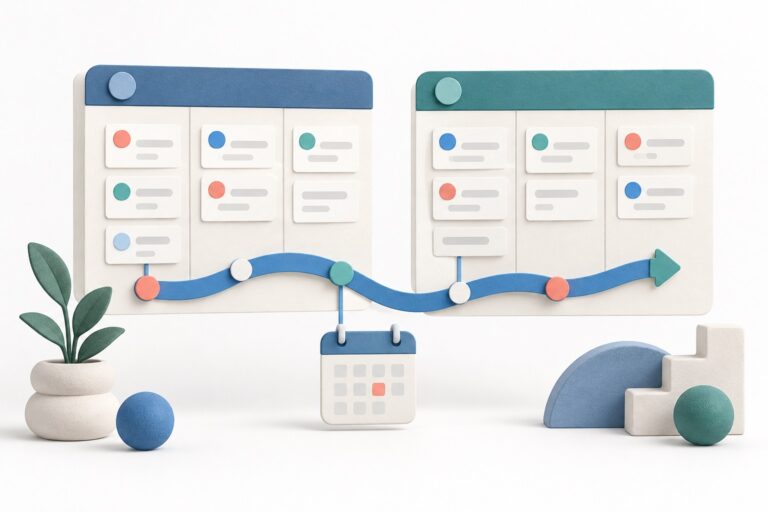
Use ClickUp dependencies to show which handover must happen before another task can finish. Then decide separately whether dates should move automatically. Someone still needs to assess a delay and explain its consequences to the client.
This guide is for a team already using ClickUp. If you are choosing a platform, start with our ClickUp versus monday.com comparison.
Table of Contents
Choose the correct dependency direction
ClickUp’s dependency introduction distinguishes a task that blocks another from a task blocked by or waiting on one. A predecessor in a Done status counts as completed; the relationship remains visible after completion.
Illustrative example: a consultancy prepares a client handover. “Approve training materials” must finish before “Deliver training”. “Send access instructions” can proceed independently. Linking every item in a chain would obscure that useful distinction.
| Task | Prerequisite | Evidence for the handover |
|---|---|---|
| Approve training materials | Client review completed | Named approver confirms the final version. |
| Deliver training | Materials approved | Trainer has the approved pack. |
| Send access instructions | No link to materials approval | Recipients have usable login details. |
Give each task an owner and a clear completion condition. A vague “Ready” label can hide disagreement about whether the client has approved something or the team merely sent it for approval.
Add the relationship and check access
From the task’s Related section, use the add control, choose the blocking or blocked-by relationship, then locate the other task. The task setup instructions confirm availability on every plan, including for guests with edit or full permissions. Task dependencies are unavailable in the mobile app.
Open both ends and read the relationship aloud: “Training is waiting on materials approval.” If it says the reverse, correct the link before adding more. Ask a colleague using the intended role to inspect the same tasks. Your own administrator view does not establish what a client or freelancer can access.
Check scheduling features before upgrading
The current scheduling availability table includes Reschedule Dependencies on Free Forever and all listed paid tiers. Duration and Skip Non-Working Days start at Unlimited in that table. It lists admins as able to enable these ClickApps, while ordinary members and guests cannot.
ClickUp is also offering some Workspaces new packages with different plan names. Confirm the features in your account’s actual offer before paying. Do not upgrade just to draw a dependency because an older comparison implies all useful project features require a subscription.
Understand what moves when dates change
For automatic movement, enable the relevant rescheduling ClickApp in App Center → Scheduling & Dates and select the Spaces it covers. Under ClickUp’s rescheduling rules, the blocking task needs a due date and the waiting task needs a start date. Changing the blocker’s start or due date shifts dependent dates by the same number of days.
With Skip Non-Working Days active, recalculation follows the Workspace’s work schedule, including holidays and exceptions. Closed dependencies also move by default; clear the option for triggering on closed dependencies if that is unsuitable for your process.
Record the original client commitment separately from the current working forecast. Moving a deadline can make an updated task list look orderly while leaving the team late against what it promised. Nominate the person who checks the impact and obtains agreement to a revised delivery date.
Distinguish warnings from acceptance
The ClickApps reference describes a warning when somebody tries to close a waiting task with Dependency Warning enabled. Treat that prompt as a chance to inspect the outstanding work, not evidence that the deliverable meets your acceptance criteria.
A separate Incomplete Warning setting covers unfinished subtasks, checklist items and assigned comments. Choose the items and Spaces it should cover. For the training example, a reviewer should still check that the pack is the approved version and that the trainer has received it.
Check Gantt changes and subtask behaviour
ClickUp’s Gantt guide describes dependency lines and a rescheduling option. Bulk edits and moving a whole location do not apply the normal scheduling features. The rescheduling reference also limits Gantt rescheduling to visible tasks and their dependencies. Inspect the complete chain before relying on a filtered chart.
Remap Subtask Due Dates is a different mechanism: a later parent deadline can shift dated subtasks, but moving it earlier does not trigger that remapping. Dragging tasks in Gantt does not remap subtask due dates either. Decide whether you need links between tasks or a parent/subtask scheduling rule.
For reuse, the dependency introduction says Space, Folder and List templates retain links between tasks inside the template. Duplicating a task can retain its dependencies on other tasks. Inspect the copied project for links to an old client’s work before using it.
Run a small acceptance check
- Read each link. Confirm the predecessor and successor with their owners.
- Introduce a delay. Change one sample deadline and inspect the affected dates, including a closed task.
- Challenge completion. Leave an approval outstanding and check the warning and reviewer response.
- Reuse the process. Make a sample copy and check that it refers to the intended project.
- Explain the impact. Ask the coordinator to state the original commitment, current forecast and person to contact.
These are proposed checks, not reported test results. If maintaining the links takes more effort than coordinating the work, simplify the process. Our task management software guide helps frame that broader choice.
Sources reviewed 26 September 2026 against official ClickUp documentation. The consultancy example and acceptance checks are illustrative recommendations.