The right HubSpot Outlook integration depends on where your email is hosted, as well as which version of Outlook you use. If your mailbox is hosted by Microsoft 365, start with HubSpot’s Office 365 add-in. Then connect the mailbox and check that the HubSpot task pane is open when you send messages that should be logged.
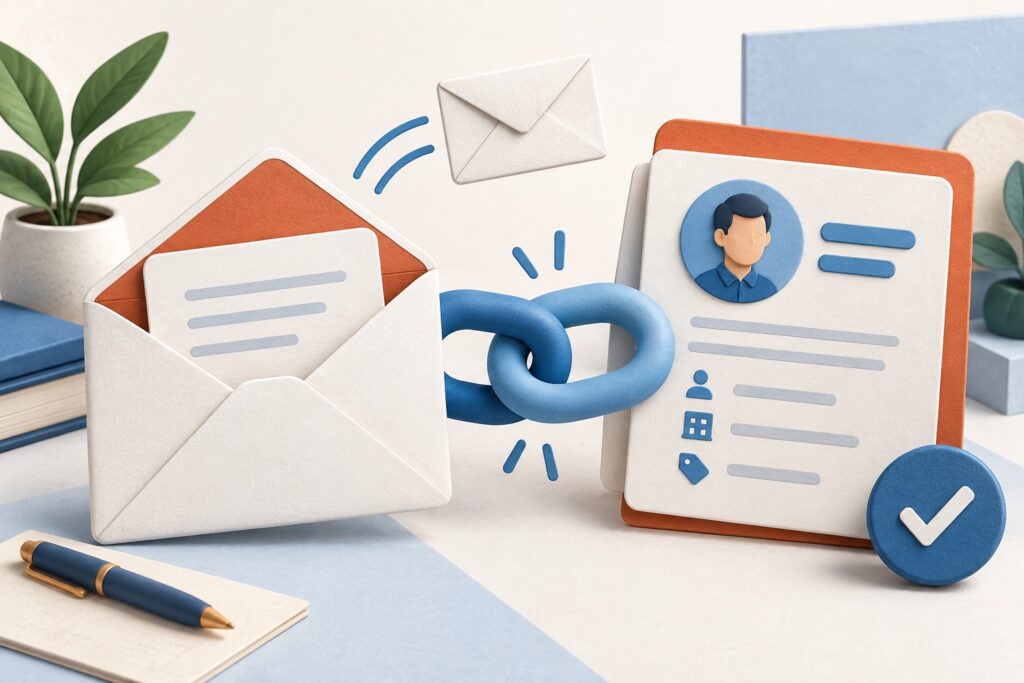
That last detail matters: an installed add-in can look ready while the CRM still misses correspondence. This guide helps a small business choose the right connection, test it and avoid a rollout in which every salesperson has a different setup.
Table of Contents
Which HubSpot Outlook add-in should you use?
| Your setup | Starting point | Important check |
|---|---|---|
| Microsoft 365 mailbox with supported Outlook | HubSpot Sales Office 365 add-in. | Connect the inbox and keep the task pane open. |
| Another email host with classic Outlook for Windows | Check eligibility for the legacy desktop add-in. | The legacy add-in is in maintenance mode. |
| A team mailbox used by several colleagues | Review a team inbox workflow. | Do not connect a shared mailbox as an individual’s work email. |
HubSpot’s installation documentation supports the Office 365 add-in with Microsoft 365-hosted email and supported classic or new Outlook clients. The older Outlook desktop add-in is limited to classic Outlook for Windows and is no longer being developed. HubSpot advises against using both add-ins on the same device because they can conflict.
“We use Outlook” therefore is not enough information for an installation request. Ask your administrator for the mailbox host, Outlook edition and whether third-party add-ins are permitted. Write those details beside each user’s name before deploying anything.
Connect the mailbox and install the add-in
In HubSpot, open Settings, General and Email, then connect the individual work account through the Microsoft provider. Use the mailbox’s primary address. HubSpot’s email connection guide lists permissions and exclusions, including Microsoft 365 shared mailboxes for individual connections.
Install HubSpot Sales through the official route for your Outlook edition. Sign in to the intended HubSpot account, open a draft email and locate the HubSpot pane. Access differs across Outlook versions; the Office 365 setup guide shows the available locations.
Where supported, pin the task pane. HubSpot says logging and tracking preferences apply when this pane is open while composing. Include a visible “pane open” check in your team’s setup instructions rather than assuming users will remember it after one demonstration.
Separate logging from tracking
A logged email gives colleagues a record of what was said. An engagement notification helps you interpret what might have happened after delivery. These serve different purposes. A customer accepting a scope change belongs in the relationship history even if nobody needs to monitor an open event.
Choose which CRM records receive each conversation and establish an exclusion rule for internal or sensitive correspondence. For example, an account manager might log discussions about a renewal to the renewal deal, while keeping recruitment emails outside the CRM. This is an organisational choice to agree before adopting a default.
The Office 365 logging guide explains sender eligibility, record associations and limitations. It also states that attachments larger than 50 MB are not logged, even though the email itself can still be delivered and recorded. If large documents are central to your workflow, test the document-sharing method your team actually uses.
A practical test for a five-person sales team
Consider a small supplier whose five account managers each handle a group of customers. The owner wants colleagues to cover absences without searching another person’s inbox. The following is an illustrative rollout, not a result from a product trial.
- Choose one pilot user. Record their Outlook edition, primary email and HubSpot account.
- Create a test customer and deal. Use addresses you control and label the records clearly.
- Send a logged message. Confirm the pane is open and the intended records are selected.
- Check the result from another user account. Verify the right colleague can read the conversation and see the next task.
- Test a reply and an exclusion. Check both the wanted and unwanted recording behaviours.
- Repeat on another Outlook edition. A successful browser test does not establish that everyone’s desktop configuration is correct.
Only then roll out the instructions to all five users. At the end of the first week, review a few genuine opportunities with permission from the team. Look for missing next actions, duplicate records and messages associated with the wrong deal.
Common Outlook connection problems
The add-in is missing. Check the Outlook version, installation route and your organisation’s add-in permissions. Avoid downloading an old installer simply because a toolbar is unfamiliar.
The connection keeps looping. Check whether you signed in with an alias instead of the primary mailbox. HubSpot identifies this as a possible cause in its Outlook troubleshooting documentation.
The email arrived but did not log. Check the pane, Log setting, sender address and record selection. Treat delivery and recording as separate checks. Re-sending the same proposal is not a useful first response to a missing CRM entry.
Only one colleague has the problem. Compare that person’s host, client version and permissions with the successful pilot. Keep a brief record of the difference instead of changing the whole team’s settings.
What to check before paying for additional sales tools
Prove that your basic correspondence workflow works first. Then list the extra actions you need, such as inserting particular sales resources or using an automated sequence. Availability can depend on subscription and assigned seat; seeing a tool in an add-in does not establish that every user can use it.
Our CRM selection guide for UK startups helps compare the wider workflow. If your main problem is several people answering one address, compare the shared-support approach in our customer service software guide before configuring individual inboxes.
Product details checked against official documentation on 9 September 2026. This guide uses published capabilities and illustrative workflows to support your evaluation.