The HubSpot Gmail integration is useful when you want a customer’s email conversation to sit beside their deals and follow-up tasks. Set up the connection around the mailbox you actually use for sales, then decide which messages belong in the CRM. Installing an extension alone does not make a disorganised inbox into a reliable sales process.
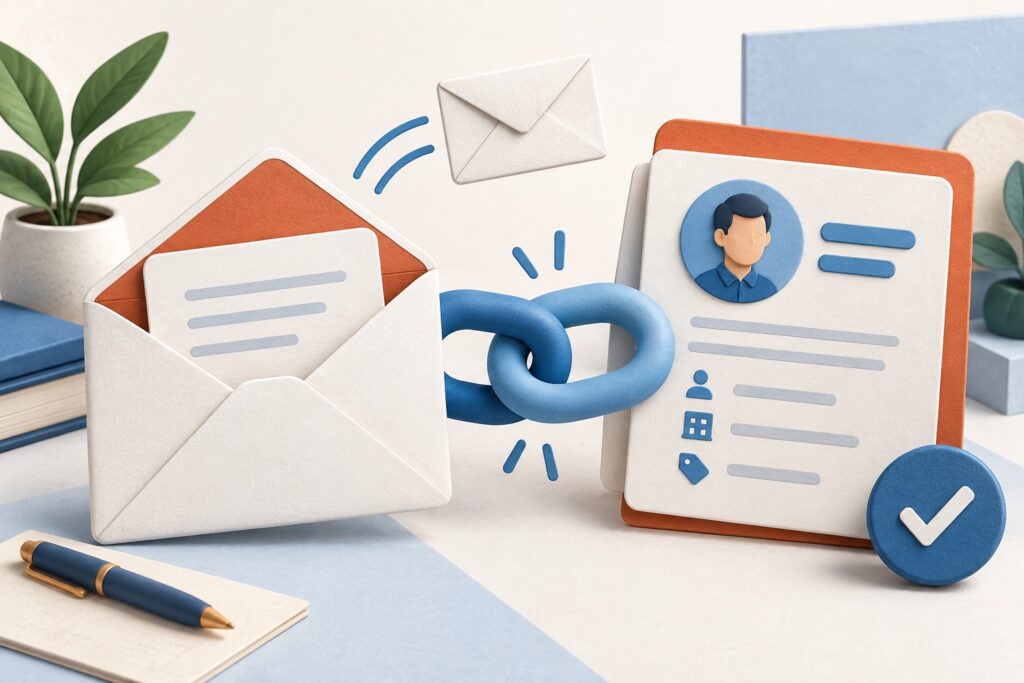
For most small teams using Gmail in Chrome, the practical starting point is an individual work email connection plus the HubSpot Sales Chrome extension. This guide explains their different jobs, a sensible first setup and the checks to run before inviting the rest of your team.
Table of Contents
What the Gmail connection and Chrome extension do
| Component | Main purpose | Choose it when |
|---|---|---|
| Connected work email | Use your mailbox with one-to-one email features in HubSpot. | You want to work from the CRM as well as Gmail. |
| HubSpot Sales Chrome extension | Bring logging, tracking and supported sales tools into Gmail. | You prefer writing emails in Gmail. |
| Team email connection | Give colleagues a shared customer correspondence workflow. | Several people answer the same business address. |
HubSpot distinguishes an individual work mailbox from a team address and does not let the same mailbox serve both roles. Its work email connection guide explains the supported providers and permissions. Pick the role first: a shared support address should not be treated as one salesperson’s private inbox.
Connect HubSpot to Gmail
- Sign in to the HubSpot account that should hold your customer records.
- Open Settings, then General and the Email tab. Choose Connect email account.
- Enter the work address, select Google when prompted and review the requested access.
- Choose the correct Google account and complete the connection. Check the confirmation in HubSpot.
- For Gmail in Chrome, install the official HubSpot Sales Chrome extension and sign in to the same HubSpot account.
The official installation guide distinguishes Gmail in Chrome from Outlook and explains compatibility. Some extension functions work without a connected inbox, while other sales tools require the connection. Treat the two components as separate checks if a feature is missing.
Before connecting a mailbox containing confidential correspondence, decide what your colleagues should be able to see. The connection involves granting HubSpot access to email data; the authorisation screen and your organisation’s policy should guide that choice. A work address dedicated to customer conversations is easier to manage than a mailbox mixing sales, employment matters and personal messages.
Choose when to log an email
Logging saves correspondence against CRM records. Tracking provides engagement signals. You can want a durable record of an agreed delivery date without needing an open notification, so do not automatically treat the two settings as a single decision.
In Gmail, review the Log and Track controls before sending. Check the records selected for logging, particularly when a contact is associated with several opportunities. HubSpot’s Gmail logging instructions also explain exclusions and confirm that old messages are not automatically imported when logging is enabled.
For a consultancy, a workable rule might be to log proposals, project scope changes and substantive sales replies, while excluding internal conversations. Write that rule down in one paragraph. Two people applying the same simple rule will usually produce more useful records than two people choosing independently from a long list of optional fields.
Run a small test before rolling it out
Use a test contact you control and a clearly labelled message. The aim is to verify the path your team will use, not to generate realistic sales activity.
- Send from the correct Gmail address and confirm delivery.
- Check that the message appears on the intended contact and relevant deal.
- Reply from the test recipient and check how the reply is recorded.
- Send one message with logging off and confirm your exclusion behaves as expected.
- Ask a colleague to view the record and check whether their access matches your intention.
Record the result of each check. If a message lands on the wrong deal, fix association choices before importing a larger contact list. If several people share a customer, agree who owns the next action; email history alone does not allocate responsibility.
When the HubSpot Gmail integration is not working
Start by identifying the failing stage: mailbox authorisation, extension display, message delivery, CRM logging or notifications. These are different problems. A delivered email with no CRM entry calls for a logging check; it does not prove Gmail failed to send it.
Confirm the Google account and HubSpot account selected in the browser. Then review extension updates and any administrator restrictions using HubSpot’s Chrome extension troubleshooting guide. Avoid repeatedly disconnecting an otherwise working mailbox before checking the specific symptom.
For historical correspondence, use the supported BCC and forwarding options where appropriate. Add only messages that a colleague needs to understand the relationship. A concise summary note may be more useful than importing years of routine exchanges.
Is the integration worth using on the free CRM?
It can be, if missing context and forgotten follow-ups are your immediate problems. Start by measuring whether customer emails reach the right record and whether every active opportunity has a next action. Those checks are more useful than counting how many toolbar buttons you have enabled.
Compare the free CRM limits before choosing a platform. If you are already considering HubSpot, our HubSpot free versus paid guide for startups explains the wider upgrade decision. Buy additional features when you can name the workflow they improve.
Product details checked against official documentation on 9 September 2026. Recommendations are based on the published capabilities and the workflows described above.